Online FPS Test and Monitor Refresh Rate Checker
Check browser FPS, frame time stability, and monitor refresh rate in seconds. This free online test runs on desktop and mobile with no download or sign-up.
Current FPS
0
100%
Free Forever
0
No Downloads Required
Real-time
FPS Detection
Supported
Free Online FPS Test
Monitor your screen's performance in real-time with our advanced FPS testing tool.
Current FPS
0
Average FPS
0
Min FPS
0
Max FPS
0
Frame Time
0.0ms
Stress Level
0 elements
Refresh Rate Guide
Performance Tips
- Close background applications to free up system resources.
- Enable hardware acceleration in your browser settings.
- Update your graphics drivers to the latest version.
- Disable browser extensions that may affect performance.
What Is an Online FPS Test and Frame Rate Checker?
An {strong}online FPS test{/strong} helps you measure how smoothly your browser and display render motion. It is useful for gamers, streamers, developers, and anyone comparing monitor performance.
Our {strong}free browser FPS checker{/strong} counts rendered frames in real time so you can verify whether your screen is reaching 60Hz, 120Hz, 144Hz, 165Hz, or 240Hz under real browsing conditions.
Because the test runs directly in your browser, you can quickly benchmark frame rate, frame time consistency, and general display smoothness without installing extra software.
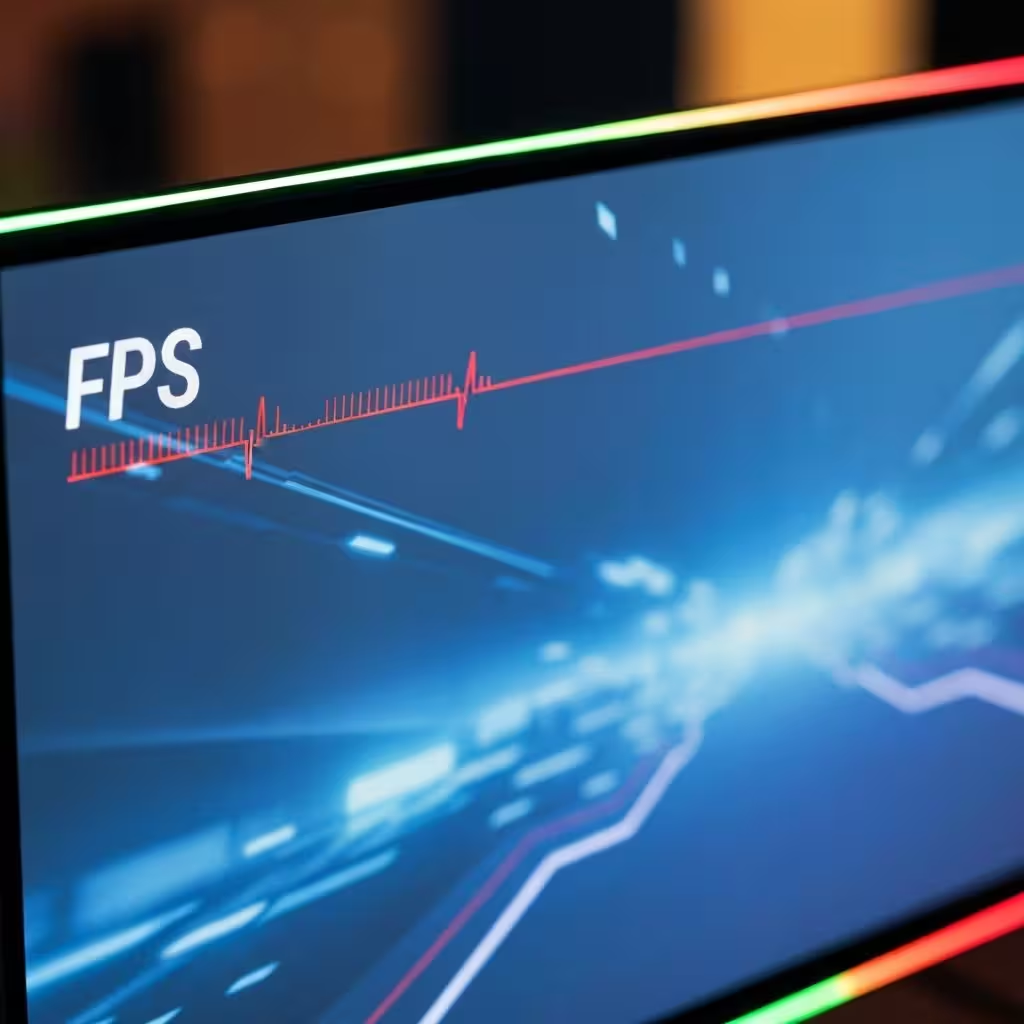
Why Use Our Free Online FPS Test Tool?
Real-Time FPS Test
Get instant, accurate frame rate measurements as you browse. Our FPS checker updates every second for precision.
Performance Analytics
Track minimum, maximum, and average FPS over time. Understand your display's true capabilities with detailed metrics.
No Install Required
No downloads required. Our free online FPS test works directly in your browser on any device.
Visual FPS Graph
Watch your frame rate performance over time with our interactive real-time graph visualization.
Understand Frame Rate, FPS, and Monitor Refresh Rate

What Does FPS Mean in an Online Frame Rate Test?
FPS (Frames Per Second) refers to the number of individual images displayed per second on your screen. The higher the FPS, the smoother the motion appears. This is why an {strong}FPS test{/strong} is essential for gamers and professionals alike.
Common FPS targets include 30 FPS (minimum), 60 FPS (standard), 120 FPS (smooth), and 144+ FPS (competitive gaming). Use our free online FPS test to see where your system stands.
FPS vs Monitor Refresh Rate: What Is the Difference?
Frame Rate (FPS)
How many frames your system can produce per second. Our FPS test measures this in real-time based on your hardware capabilities.
Refresh Rate (Hz)
How many times your monitor updates its display per second. To fully utilize high refresh rate monitors, your FPS must match or exceed the Hz.
Who Should Use an Online FPS Test Checker?
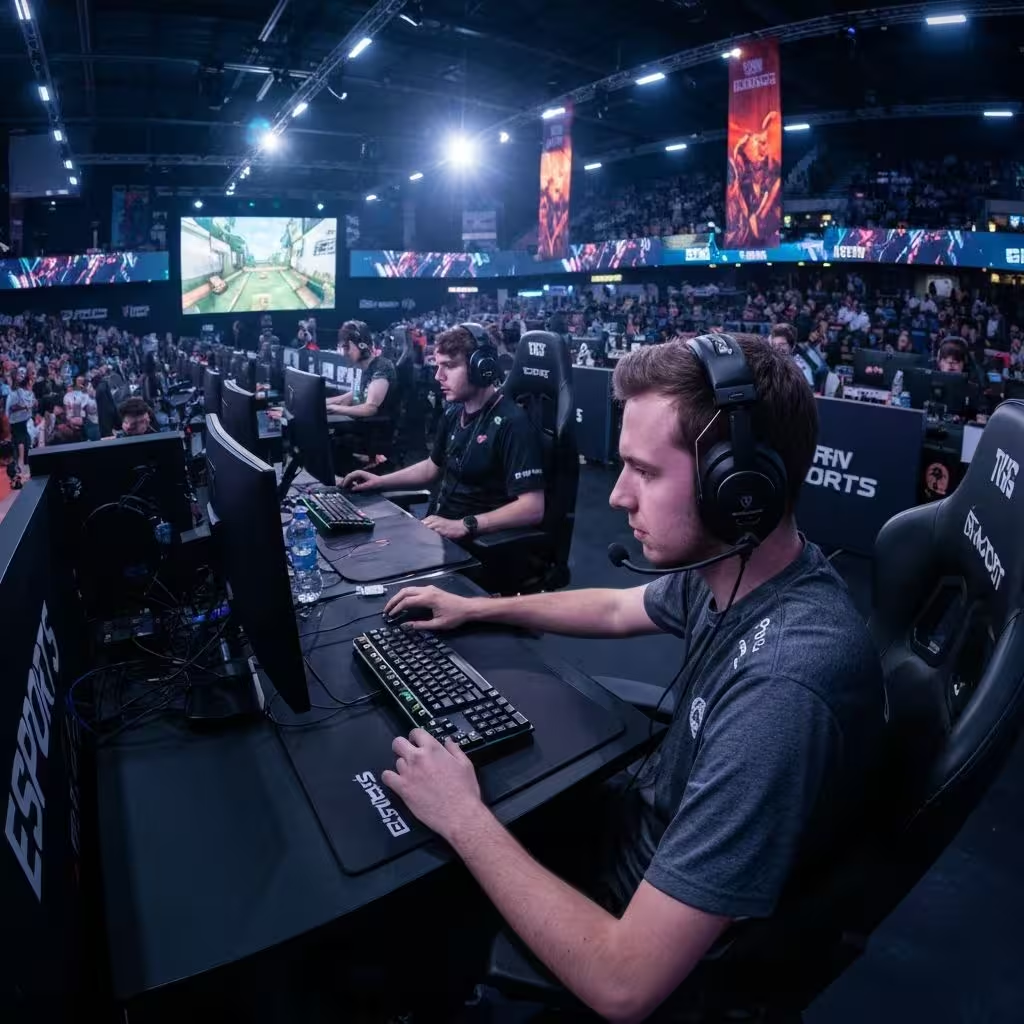
Gamers
Competitive gamers rely on high frame rates. Use our free online FPS test to ensure your setup meets competitive standards like 144Hz or 240Hz.
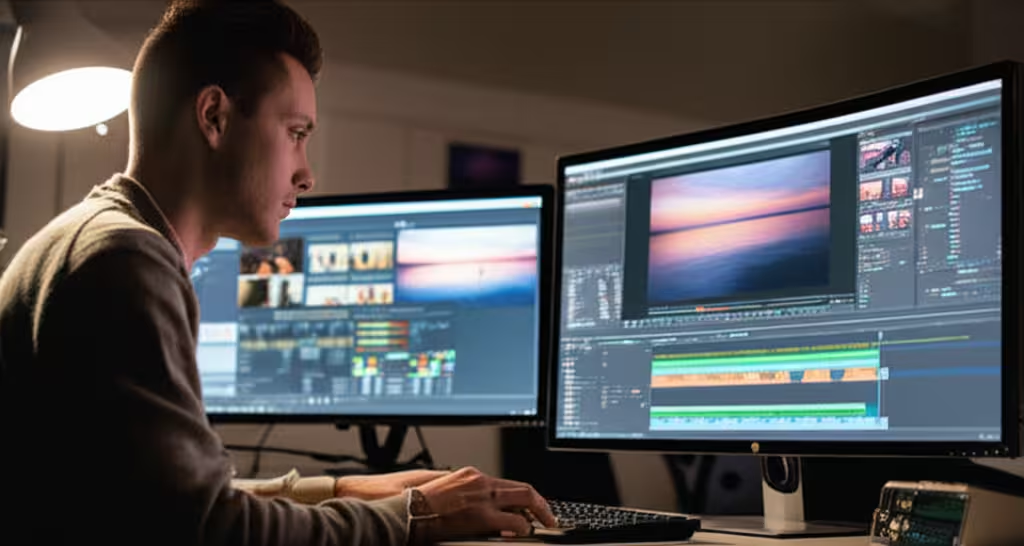
Content Creators
Video editors and streamers need consistent frame rates. An FPS test helps identify performance issues that could affect video quality.
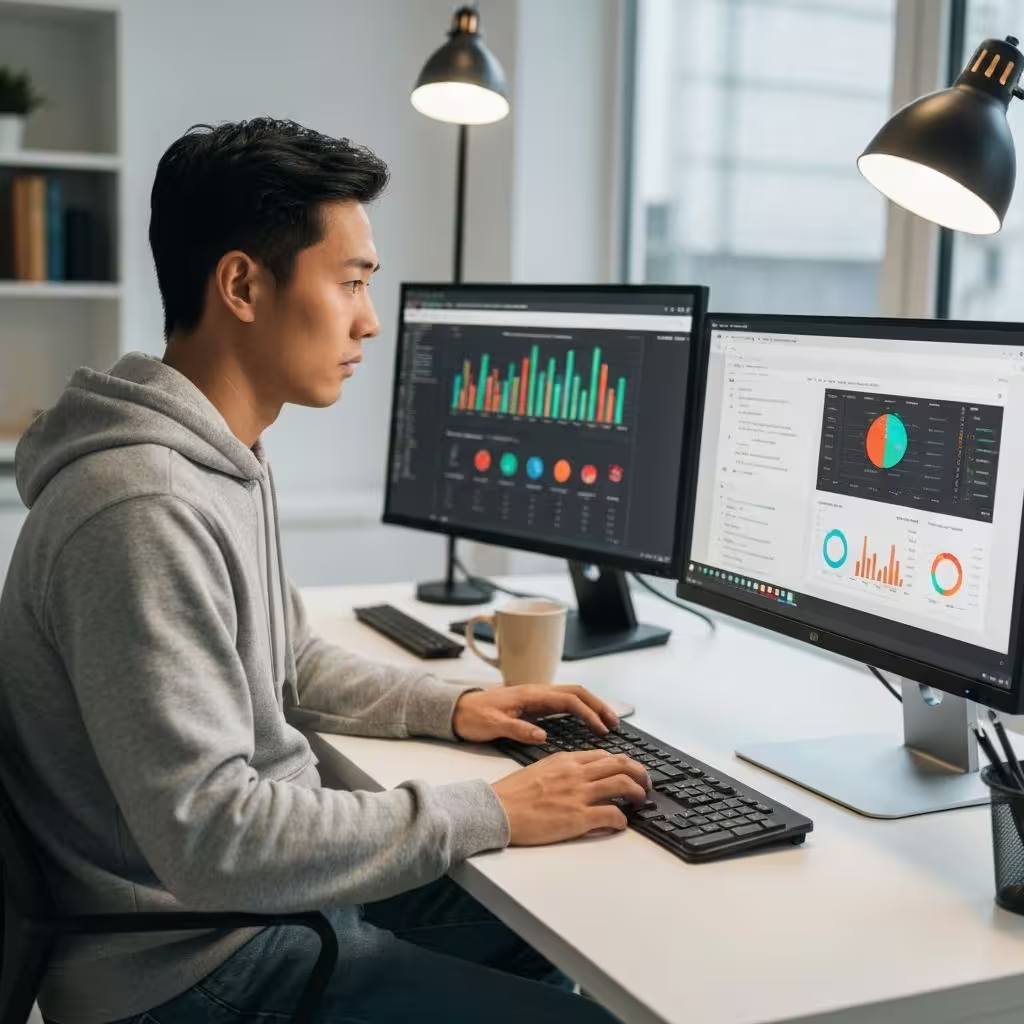
Web Developers
Developers use FPS testing tools to optimize web animations and ensure smooth user experiences.
How to Use Our Online FPS Test for Accurate Results
Open the FPS Test
Simply visit www.fpstest.tools - no downloads, no installations. Our free online FPS test works instantly.
Let the Test Run
The FPS checker automatically begins measuring. For accurate results, let it run for at least 30 seconds.
Analyze Your Results
Review your current FPS, average FPS, minimum and maximum values. The visual graph shows performance stability.
Export and Compare
Download your results as JSON. Use this data to compare performance after making system changes.
Tips for a More Accurate FPS and Refresh Rate Test
Close Background Apps
For the most accurate FPS test results, close unnecessary applications consuming system resources.
Disable Browser Extensions
Some extensions can affect performance. Disable them temporarily for a true baseline FPS measurement.
Test Multiple Times
Run the FPS test several times to get a comprehensive view of your system's performance.
Use Fullscreen Mode
Testing in fullscreen can provide more accurate FPS results by eliminating browser UI overhead.
Test on Multiple Devices
Use our free online FPS test on different devices to compare performance across your setup.
Check Hardware Acceleration
Ensure hardware acceleration is enabled in your browser settings for optimal FPS performance.
Technical Details: How Our Browser FPS Test Measures Performance
Our FPS test uses the browser's {code}requestAnimationFrame{/code} API to accurately measure frame rates. This is the industry standard for precise, real-time FPS data.
The free online FPS test calculates frames rendered within each second. Advanced metrics like frame time help identify stuttering.
Unlike downloadable software, our browser-based FPS test measures your system's ability to render web content specifically.
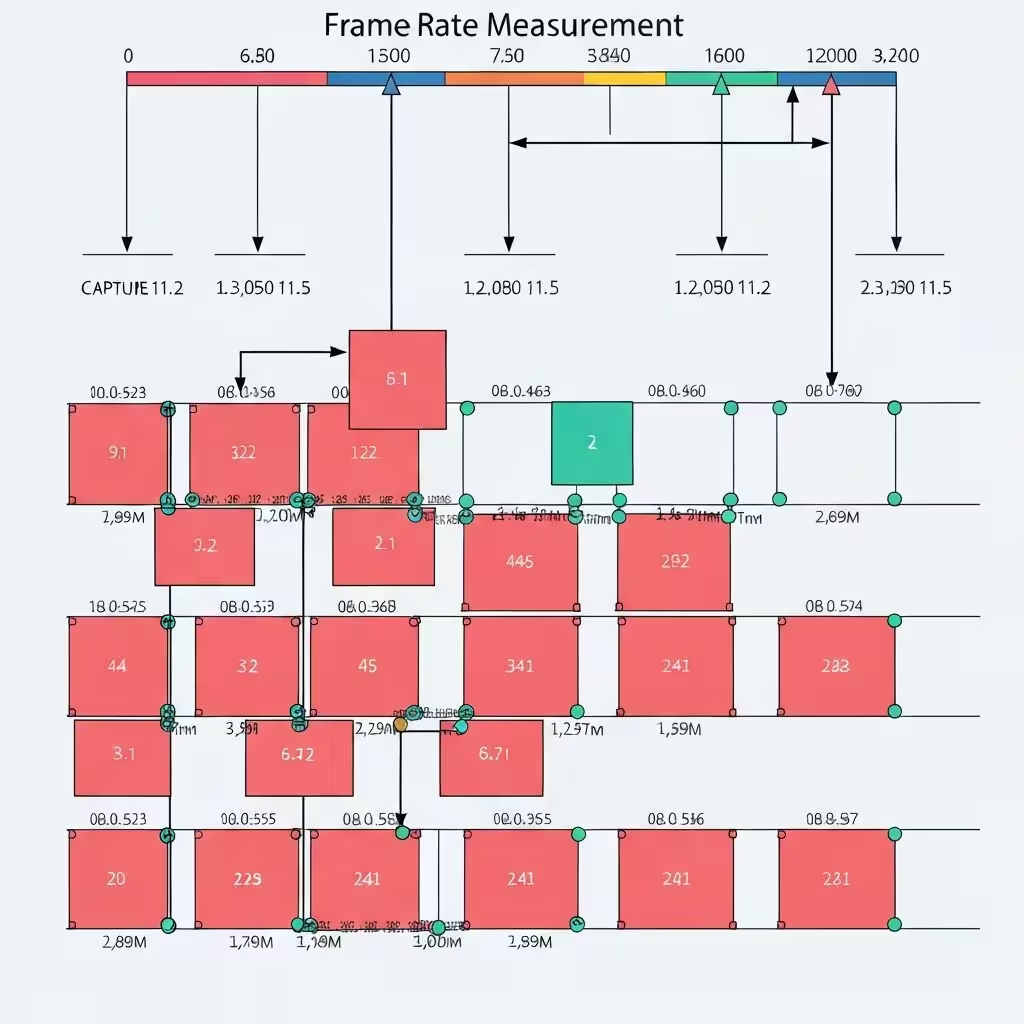
FPS, Frame Time, and Refresh Rate Guide for Better Performance
Frame rate (FPS) determines how smooth motion looks. Higher FPS delivers more fluid movement and a more responsive feel.
24 FPS
Film-standard cadence, ideal for narrative and artistic work.
30 FPS
Typical for broadcast TV and web video, smoother than 24 FPS.
60 FPS
Standard for gaming and sports; captures fast motion fluidly.
90 FPS
Used in VR to reduce judder and improve comfort.
120 FPS
Excellent for slow-motion and high-speed gameplay.
240 FPS
Designed for esports; ultra-smooth with fine motion granularity.
FPS and Gaming Performance
In games, higher FPS enhances responsiveness. Competitive players target 60 FPS and often 120/144+.
What's the Difference Between FPS and Refresh Rate?
Frame Rate (FPS)
The number of frames produced each second.
Refresh Rate (Hz)
How often the display updates. Matching FPS to Hz maximizes smoothness.
Boosting FPS on Devices
- Lower Resolution
- Update Graphics Drivers
- Optimize Video Settings
- Overclocking
- PC Optimization Software
- Disable Background Apps
- Update DirectX
- Clean System Cooling
- Upgrade Hardware
- Display Settings
Lowering resolution and tuning quality options can significantly increase FPS.
System Maintenance
Keep drivers up to date and manage background processes to sustain stable FPS.
Hardware Considerations
For substantial gains, upgrade GPU, CPU, or RAM.
Note: Overclocking can improve performance but may affect stability.
Free Online Monitor Test Suite
Check the display problems that matter before a return window closes or a gaming session starts.
Frequently Asked Questions
Everything you need to know about our free online frame rate checker.
From Our Blog
Latest guides and tips on FPS, refresh rate, and monitor performance.
Monitor Ghosting Test: How to Check Motion Blur
Learn how to check a gaming monitor for ghosting, inverse ghosting, motion blur, and refresh-rate problems with simple browser motion tests.
How to Test a New Monitor Before the Return Period Ends
Use this new-monitor checklist to test refresh rate, dead pixels, backlight bleed, uniformity, color, and motion before your return window closes.
Dead Pixel vs Stuck Pixel: What Is the Difference?
Learn how dead pixels, stuck pixels, and bright pixels differ, how to test a monitor at home, and what to document before a return or warranty claim.